Aspect ratio changer
Change a photo's aspect ratio to 1:1, 4:5, 9:16, 16:9, 4:3 or your own, and crop or pad it with blur or colour.
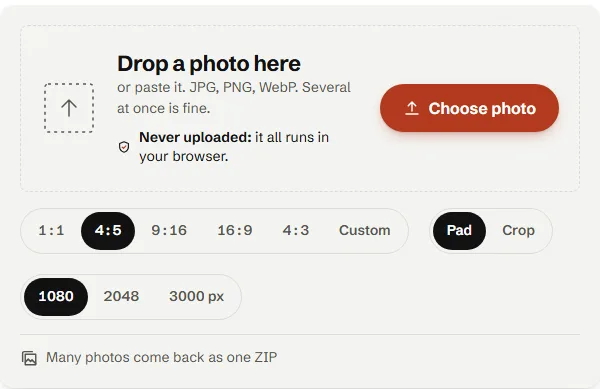
Drop a photo here
or paste it. JPG, PNG, WebP. Several at once is fine.
Never uploaded: it all runs in your browser.
Freeno account, no watermark
Privatefiles stay on your device
3000 pxlargest preset export
Batchmany photos, one ZIP
This aspect ratio converter changes a photo's shape to 1:1, 4:5, 9:16, 16:9, 4:3 or a ratio you type. It is free and runs in your browser, with no upload.
Crop trims the edges to fill the frame; Pad keeps every pixel and fills the gap with blur or a colour.
What the converter shows once a photo is in
The original sits beside the converted photo, with the new size in pixels and a line that says how much the crop removes or the pad adds.
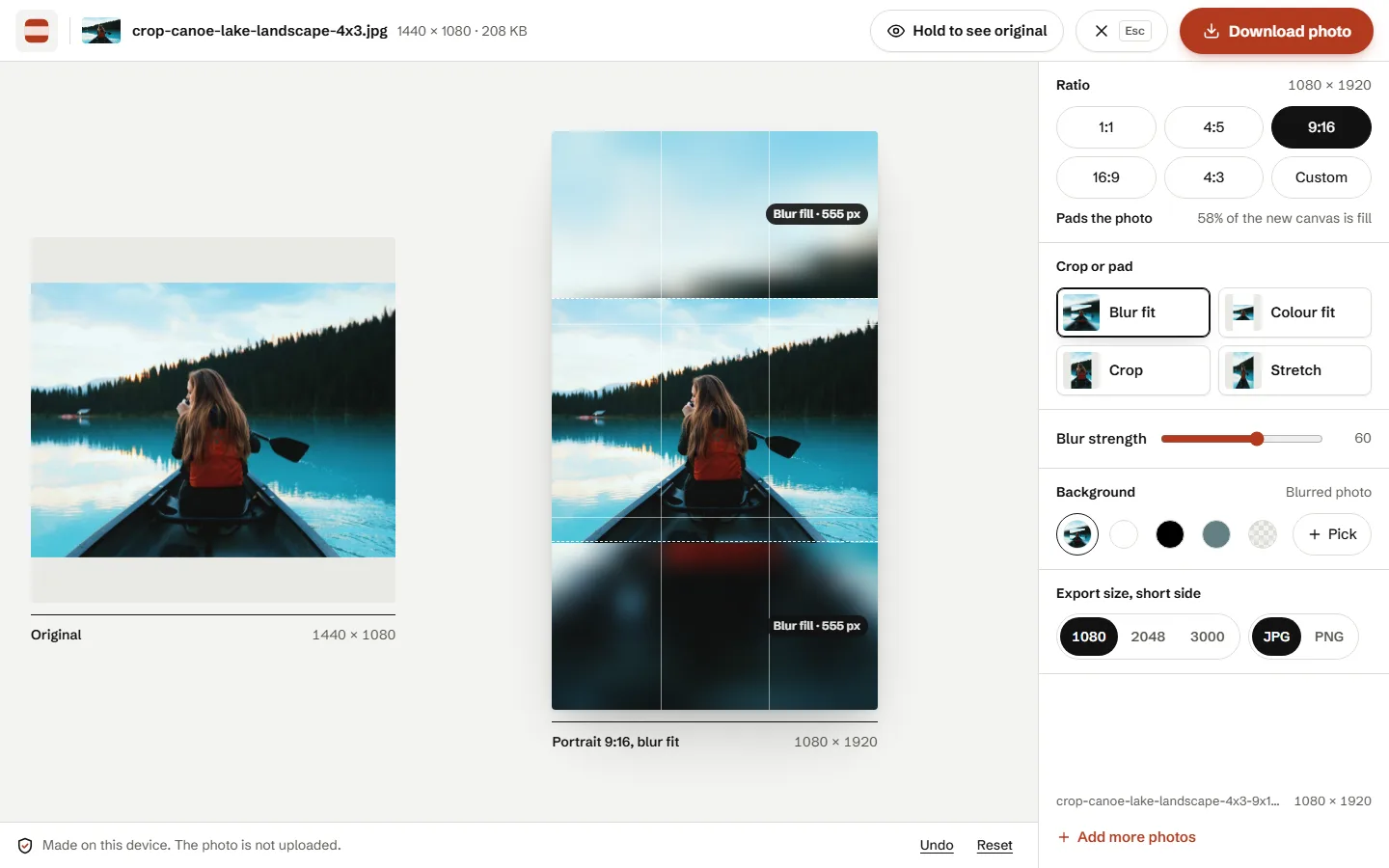
The export size is the short side: 1080, 2048, 3000 or Custom, 100 to 3000 px. The long side follows from the ratio and stops at 5400 px.
For a square only, make your image square instead on the main tool, which opens with the square presets.
Which ratio to convert to: 1:1, 4:5, 9:16, 16:9 or 4:3
Convert to the ratio of the place the photo is going. An aspect ratio is width compared with height, so 16:9 means 16 units wide for every 9 units tall.
| Ratio | Shape | Size at 1080 px | Typical use |
|---|---|---|---|
| 1:1 | Square | 1080 × 1080 | Profile pictures, product grids, square feed posts |
| 4:5 | Portrait | 1080 × 1350 | Tall feed posts that take more of a phone screen |
| 9:16 | Tall portrait | 1080 × 1920 | Full-screen vertical formats on a phone held upright |
| 16:9 | Wide | 1920 × 1080 | Video thumbnails, slides, TV and monitor screens |
| 4:3 | Landscape | 1440 × 1080 | Phone camera photos, tablets, older screens and prints |
Is Instagram 9:16 or 4:5?
Instagram feed posts are not 9:16. Instagram's Help Center, read on 24 November 2026, keeps feed photos between 1.91:1 and 3:4, so 4:5 fits and 9:16 is cropped.
The same page gives the sizes: 1080 px wide, between 566 and 1440 px tall. The page covers feed photos only and gives no size for Stories or Reels.
What aspect ratio shows the full photo on Instagram?
A photo between 1.91:1 and 3:4 shows in full on Instagram, so 1:1, 4:5 and 3:4 all post uncropped. Pad a taller or wider photo to one of those first.
To post the full photo on Instagram with a white or blurred frame, the Instagram page previews the feed and the profile grid too.
Should my photos be 4:3 or 16:9?
Your photos should be 4:3 for prints and feeds, and 16:9 for a TV, monitor or video frame. A 12 megapixel phone photo of 4032 × 3024 px is 4:3.
Shooting 4:3 keeps more of the sensor. A centred crop from 4:3 to 16:9 keeps 75% of a 4032 × 3024 phone photo, so you can still get 16:9 later.
Crop or pad: what each conversion keeps and what it adds
Crop keeps the new frame full and throws away the edges of the photo. Pad keeps the whole photo and adds canvas around it, filled with blur or colour.
Both give the same pixel size. The difference is which part of the frame is your photo: all of it after a crop, only part of it after a pad.
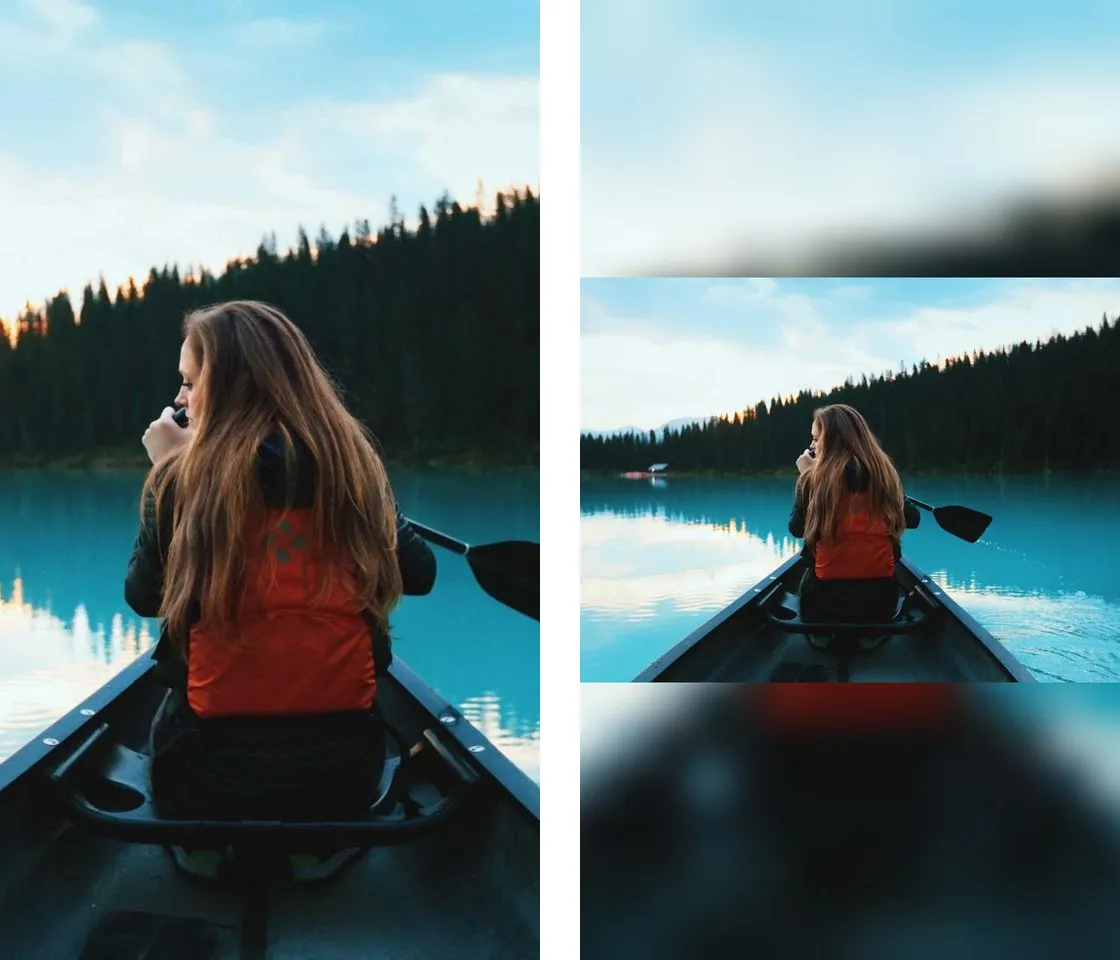
Crop, 1080 × 1920Removes 58% of the 1440 × 1080 photo. File 207 KB.
Pad with Blur fit, 1080 × 1920Keeps all of it; 58% of the canvas is fill. File 187 KB.
Six photos, four ratios, crop against pad
We converted six photos to 1:1, 4:5, 9:16 and 16:9 in both modes, then checked each crop for a cut face, product or line of text.
| Photo | 1:1 | 4:5 | 9:16 | 16:9 |
|---|---|---|---|---|
| landscape 1600 × 1066 | 33% | 47% | 62% | 16% |
| portrait 1066 × 1600 | 33% | 17% | 16% | 62%, subject cut |
| face in a landscape frame 1600 × 1066 | 33% | 47% | 62% | 16% |
| product 1600 × 1126 | 30%, subject cut | 44%, subject cut | 60%, subject cut | 20% |
| text-heavy screenshot 1440 × 900 | 37%, subject cut | 50%, subject cut | 65%, subject cut | 10% |
| sky and water 1600 × 1066 | 33% | 47% | 62% | 16% |
7 of 24 crops cut the subject: the mug's print and a screenshot's headline at 1:1, 4:5 and 9:16, and a portrait's head and chin at 16:9.
Run on 24 November 2026 in Playwright Chromium 159 on Windows, at 1080 px as JPG.
Fit vs fill (contain vs cover)
Pad is "fit" and crop is "fill". MDN's page on the CSS object-fit property calls them contain and cover, the same two choices.
Contain scales the photo until it fits inside the frame. Cover scales it until it covers the frame, then cuts what spills over. The W3C CSS Images Module specifies both.
Bands above and below a wide photo are letterboxing. Bands beside a tall photo are a pillarbox. Both terms come from film and TV, where screen and footage shapes differ.
A blurred background fill uses a soft, enlarged copy of the same photo for the bands. The edges keep the photo's colours, so the frame reads as one picture.
How to center the image using transparent margins
To center the image on transparent margins, choose Pad, then Colour fit, then the checkered Transparent swatch. The photo sits in the middle of the new frame.
Transparent padding (alpha channel) needs PNG, because JPG has no alpha channel. The editor switches the format to PNG and turns JPG off while Transparent is picked.
How do I keep the aspect ratio when resizing an image to a square?
To keep the aspect ratio when resizing an image to a square, pick 1:1 and Pad. The photo keeps its shape inside the square; only the bands are new.
Choose how the bands look: fill the gap with a blur, or pad it with a white border. To lose the bands instead, crop a photo to a square.
How the converter works out the new width and height
The converter keeps one side of the photo and works out the other from the ratio. A crop keeps one full side; a pad grows the canvas.
crop width = photo height × ratio width ÷ ratio height
pad height = photo width × ratio height ÷ ratio width
Take a 4032 × 3024 photo to 9:16. The crop width is 3024 × 9 ÷ 16 = 1701 px, which keeps 42% of the photo.
The pad height is 4032 × 16 ÷ 9 = 7168 px. The whole photo stays in the middle, and 4144 px of fill is split above and below it.
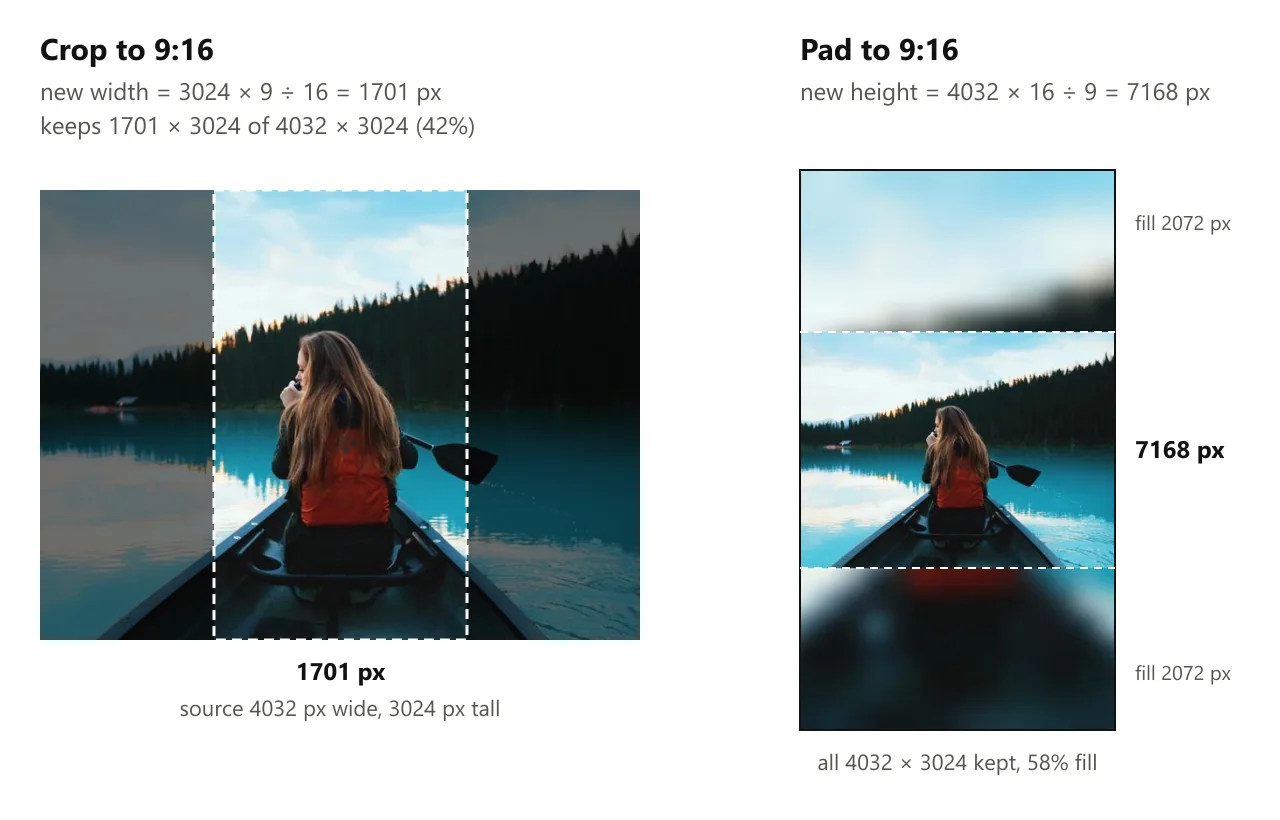
Then the result is resampled to the export size: at 1080 px, 9:16 is 1080 × 1920, the photo 1080 × 810, with 555 px of blur each side.
Resampling means computing new pixels from the old ones when an image changes size. Shrinking drops fine detail; enlarging adds pixels but no new detail.
Web pages use the same width-to-height idea. MDN documents it as the CSS aspect-ratio property, written as width / height.
Is 1920 × 1080 a 16:9 ratio?
Yes, 1920 × 1080 is a 16:9 ratio. The greatest common divisor of 1920 and 1080 is 120, and 1920 ÷ 120 = 16 while 1080 ÷ 120 = 9.
The greatest common divisor is the largest whole number that divides both sides. Dividing by it gives the smallest whole-number ratio, such as 1080 × 1350 reducing to 4:5.
Some sizes are only close. At 2048 px, 16:9 needs 3640.9 px, so the converter rounds to 3641 × 2048, which is within one pixel of 16:9.
Pixel sizes for every common ratio
Every size below is produced by the converter's own size function at its three export sizes. The long side stops at 5400 px.
| Ratio | 1080 px | 2048 px | 3000 px |
|---|---|---|---|
| 1:1 | 1080 × 1080 | 2048 × 2048 | 3000 × 3000 |
| 4:5 | 1080 × 1350 | 2048 × 2560 | 3000 × 3750 |
| 9:16 | 1080 × 1920 | 2048 × 3641 | 3000 × 5333 |
| 16:9 | 1920 × 1080 | 3641 × 2048 | 5333 × 3000 |
| 4:3 | 1440 × 1080 | 2731 × 2048 | 4000 × 3000 |
| 3:2 | 1620 × 1080 | 3072 × 2048 | 4500 × 3000 |
| 21:9 | 2520 × 1080 | 4779 × 2048 | 5400 × 2314 |
21:9 at 3000 px is the one size the cap changes. 3000 × 21 ÷ 9 would be 7000 px wide, so the converter saves 5400 × 2314 instead.
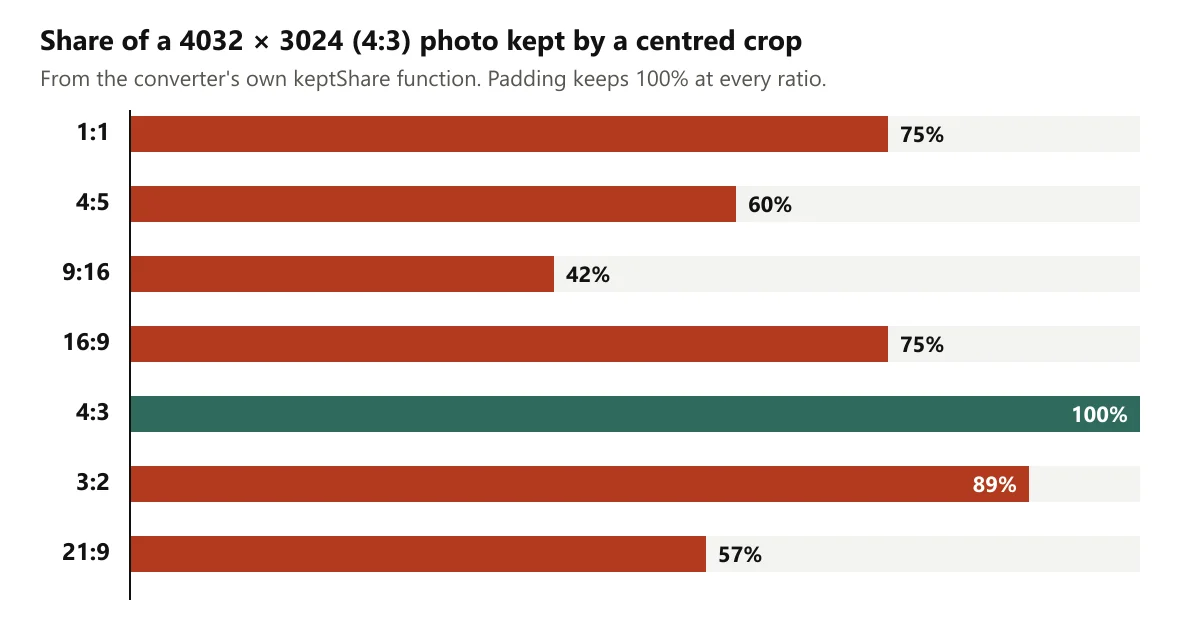
| Ratio | 4032 × 3024 | 6000 × 4000 | 3024 × 4032 | 1080 × 1080 |
|---|---|---|---|---|
| 1:1 | 75% / 25% | 67% / 33% | 75% / 25% | 100% / 0% |
| 4:5 | 60% / 40% | 53% / 47% | 94% / 6% | 80% / 20% |
| 9:16 | 42% / 58% | 38% / 63% | 75% / 25% | 56% / 44% |
| 16:9 | 75% / 25% | 84% / 16% | 42% / 58% | 56% / 44% |
| 4:3 | 100% / 0% | 89% / 11% | 56% / 44% | 75% / 25% |
| 3:2 | 89% / 11% | 100% / 0% | 50% / 50% | 67% / 33% |
| 21:9 | 57% / 43% | 64% / 36% | 32% / 68% | 43% / 57% |
- 4032 × 3024: 12 MP phone photo, landscape 4:3
- 6000 × 4000: 24 MP camera photo, landscape 3:2
- 3024 × 4032: 12 MP phone photo, portrait 3:4
- 1080 × 1080: Square post
Square or portrait to 16:9: the reverse conversion
To turn a square or portrait photo into 16:9, pick 16:9 and Pad. The photo keeps its full height, and blur or colour fills a pillarbox on each side.
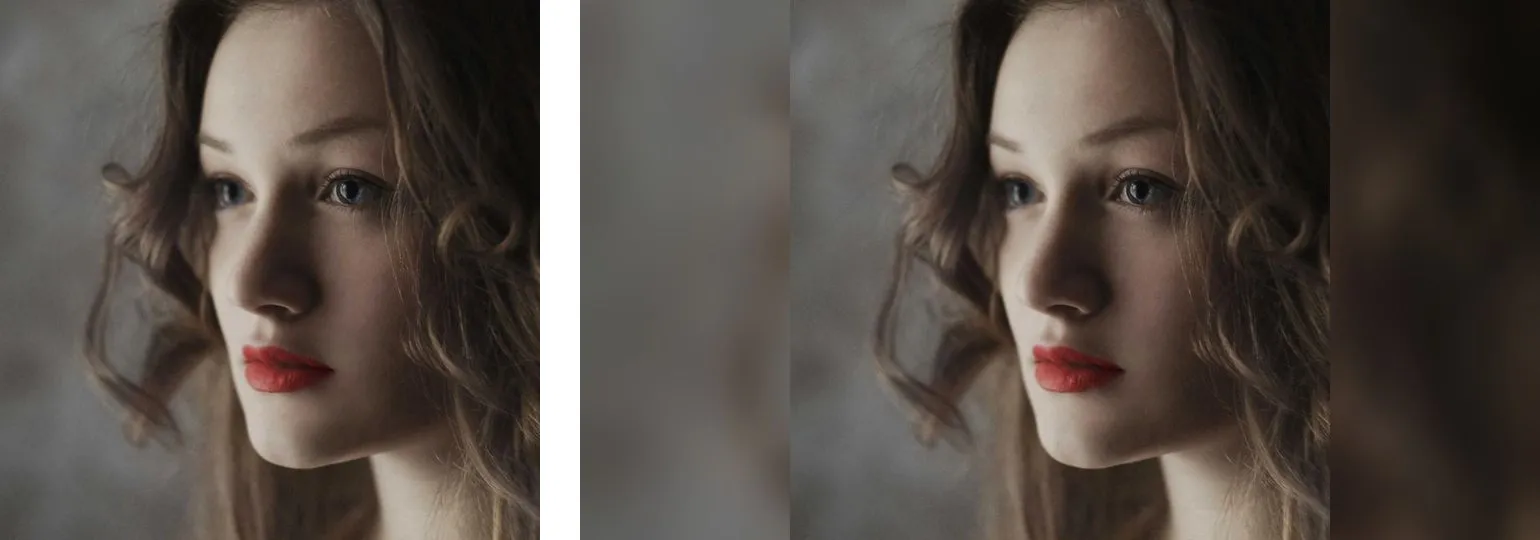
A crop works the other way. It keeps the full width, so a 1080 × 1080 square cropped to 16:9 keeps 1080 × 608, only 56% of it.
A 3024 × 4032 portrait phone photo fares worse. Cropping it to 16:9 keeps 42%, usually a band across the middle, so faces lose their top or chin.
Padding versus AI expand when you want to uncrop a photo
Padding, what this converter does
Padding adds canvas around the photo and fills it with a blurred copy, a plain colour or transparency. Nothing new is drawn, so nothing can look invented.
It suits product shots, screenshots, text and faces, where made-up detail at the edge would be wrong.
AI expand, which it does not do
AI expand, also called generative uncrop or outpainting, has a model paint new scenery past the edges. imagy.app links one as "Extend Image with AI"; we did not test it.
The new strip is a guess. It can look natural on sky, sand or water, and it can add things that were never there.
Converting to a custom ratio such as 3:2 or 21:9
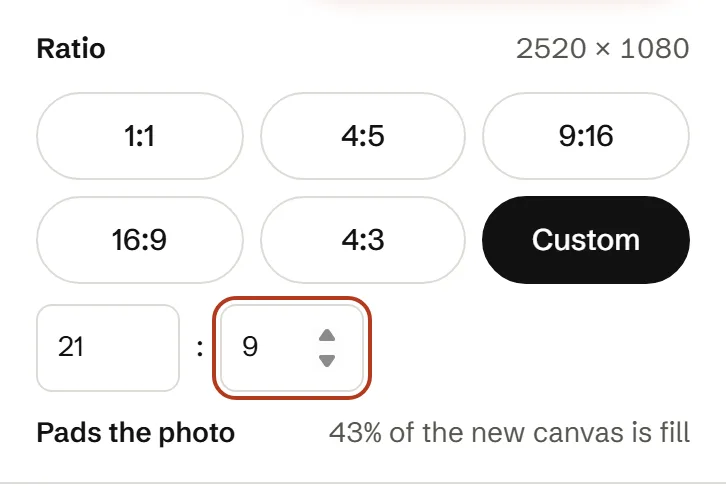
To convert to a custom ratio, press Custom and type a width part and a height part. Custom starts at 3:2, the shape of a 6000 × 4000 camera photo.
Can I enter a custom aspect ratio instead of a preset?
Yes, you can enter a custom aspect ratio instead of a preset. Each part is a whole number from 1 to 50; a larger part is ignored.
The ratio line shows the new size at once. A 1080 × 1080 square at 21:9 becomes 2520 × 1080, with 57% of the canvas as fill.
The golden ratio is about 1.618 to 1. Whole numbers only come close: 34:21 is the nearest under the limit, giving 1749 × 1080 at 1080 px.
How to change the aspect ratio of an image
To change the aspect ratio of an image, open it here, pick the ratio, choose Crop or Pad and press Download photo. It takes four steps.
Choose the photo
Drop the photo on the box at the top of this page, paste it, or press Choose photo. The editor opens over the page.
Pick the ratio
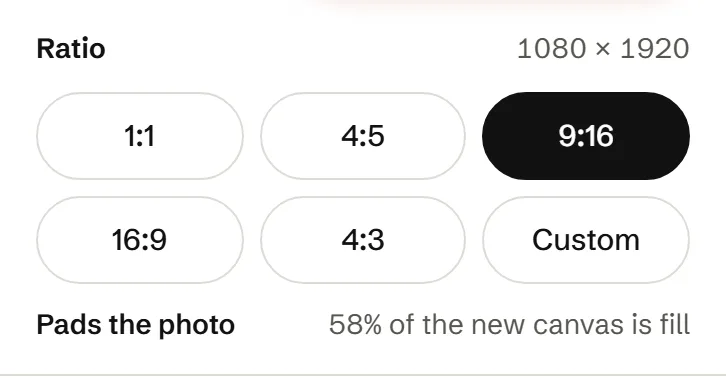
Press 1:1, 4:5, 9:16, 16:9 or 4:3, or Custom for your own. The new size in pixels shows beside the word Ratio.
Choose Crop or Pad
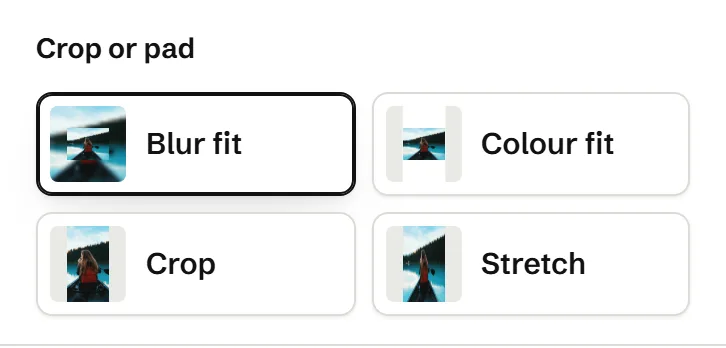
Pick Blur fit or Colour fit to pad the photo, or Crop to fill the frame. The readout says what each one removes or adds.
Set the size and download
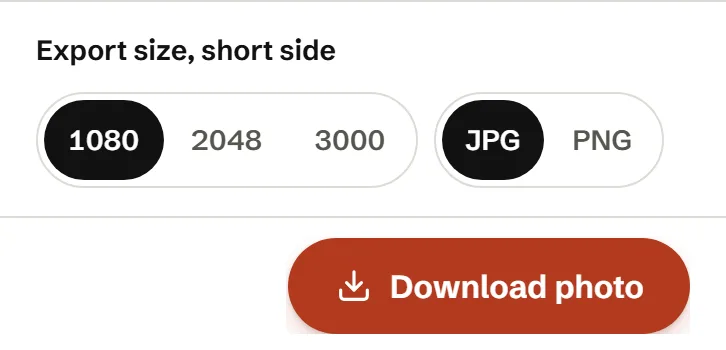
Pick the short side, 1080, 2048, 3000 px or Custom, and JPG or PNG. Press Download photo; the ratio is added to the file name.
Which file formats the aspect ratio converter opens and saves
The aspect ratio converter opens JPG, PNG and WebP photos up to 100 megapixels, and saves JPG or PNG. JPG is saved at quality 92; PNG is lossless.
HEIC photos from an iPhone open only where the browser can decode them. Chrome on Windows cannot, so the editor names the file and asks for a JPG or PNG.
Phone photos stored sideways are turned upright from their Exif orientation tag before the ratio is applied. The saved file adds the ratio to its name, such as lake-9x16.jpg.
Several photos can go in at once. Up to 30 photos share one ratio and fit, and Download all saves them as one ZIP.
SquareFitImage versus other aspect ratio changers, tested
We ran the same three photos through imagy.app and RedKetchup on 24 November 2026, at 16:9 and 9:16 with default settings, and logged every request each page sent.
| Test | SquareFitImage | imagy.app | RedKetchup |
|---|---|---|---|
| 16:9 from the 1600 × 1066 lake photo | 1920 × 1080 | 1280 × 720 | 1600 × 900 |
| 9:16 from the same photo | 1080 × 1920 | 480 × 853 | 600 × 1066 |
| 9:16 preset | Yes | Yes | No, typed as a custom ratio |
| Pad with a blurred copy | Yes, Blur fit | No, colour or transparent only | Yes, Blur Background, after typing a new width and height |
| Phone photo stored sideways (EXIF orientation 6) | Saved upright at the chosen ratio | Saved sideways, 1280 × 357 at 16:9 | Saved upright at the chosen ratio |
| Photo sent to a server | No, only GETs for the editor's own code | No, only analytics and ads | No, only 141-byte event pings |
| Golden ratio preset | No, 34:21 as a custom ratio | No | Yes |
| Export formats | JPG, PNG | JPG by default, list not read | 8, including WebP, HEIC and TIFF |
| Many photos at once | Up to 30, one ZIP | Yes, Crop & Download all Images | Separate bulk tool, not tested |
Where they do better: RedKetchup crops at the photo's own pixels, so a 1600 × 900 crop is saved without resampling. It also opens HEIC and saves 8 formats.
RedKetchup has a golden ratio preset, and imagy.app has 1:2 and 2:1 presets we lack. SquareFitImage saves at fixed sizes, so a small crop is enlarged to 1080 px.
imagy.app's crop box starts smaller than the photo, so its files were smaller than both others. A sideways phone photo came out sideways and off the chosen ratio.
Aspect ratio converter questions
You change the shape of an image by picking a new aspect ratio, then Crop or Pad. Crop trims the long side; Pad adds blur or colour.
Stretch also changes the shape, but it bends the photo, so round things turn oval.
To resize an image to a specific aspect ratio, press Custom and type the two parts, such as 3 and 2, each from 1 to 50.
Then pick the short side in pixels: 1080, 2048, 3000 or Custom. The long side follows from the ratio.
Yes, the converter changes the aspect ratio without cropping when you choose Pad: Blur fit or Colour fit. Every pixel of the photo stays in the new frame.
The editor says how much of the new canvas is fill, such as 58% for a 4:3 photo padded to 9:16.
Changing the aspect ratio lowers quality only slightly: the photo is resampled to the export size and saved again. JPG is saved at quality 92; PNG adds no compression loss.
A crop can also enlarge pixels. A 1600 × 900 crop saved at 1080 px becomes 1920 × 1080, which adds pixels but no detail.
Yes, you can convert many photos to the same ratio at once: up to 30 photos, saved as one ZIP. The ratio, fit and size apply to all of them.
Each photo can still be saved or removed on its own from the list.