Square crop tool
Square crop any photo and move the square onto your subject. It runs in your browser, so the photo never leaves your device.
Drop a photo here
or paste it. JPG, PNG, WebP. Several at once is fine.
Never uploaded: it all runs in your browser.
Freeno account, no watermark
Privatefiles stay on your device
3000 pxlargest preset export
Batchmany photos, one ZIP
What the square crop editor shows once a photo is in
A square crop keeps the largest square that fits inside your photo and removes the rest. The file is made on your device.
This tool opens with the square in the middle, dims what will be cut, and lets you drag the square onto your subject before you save.
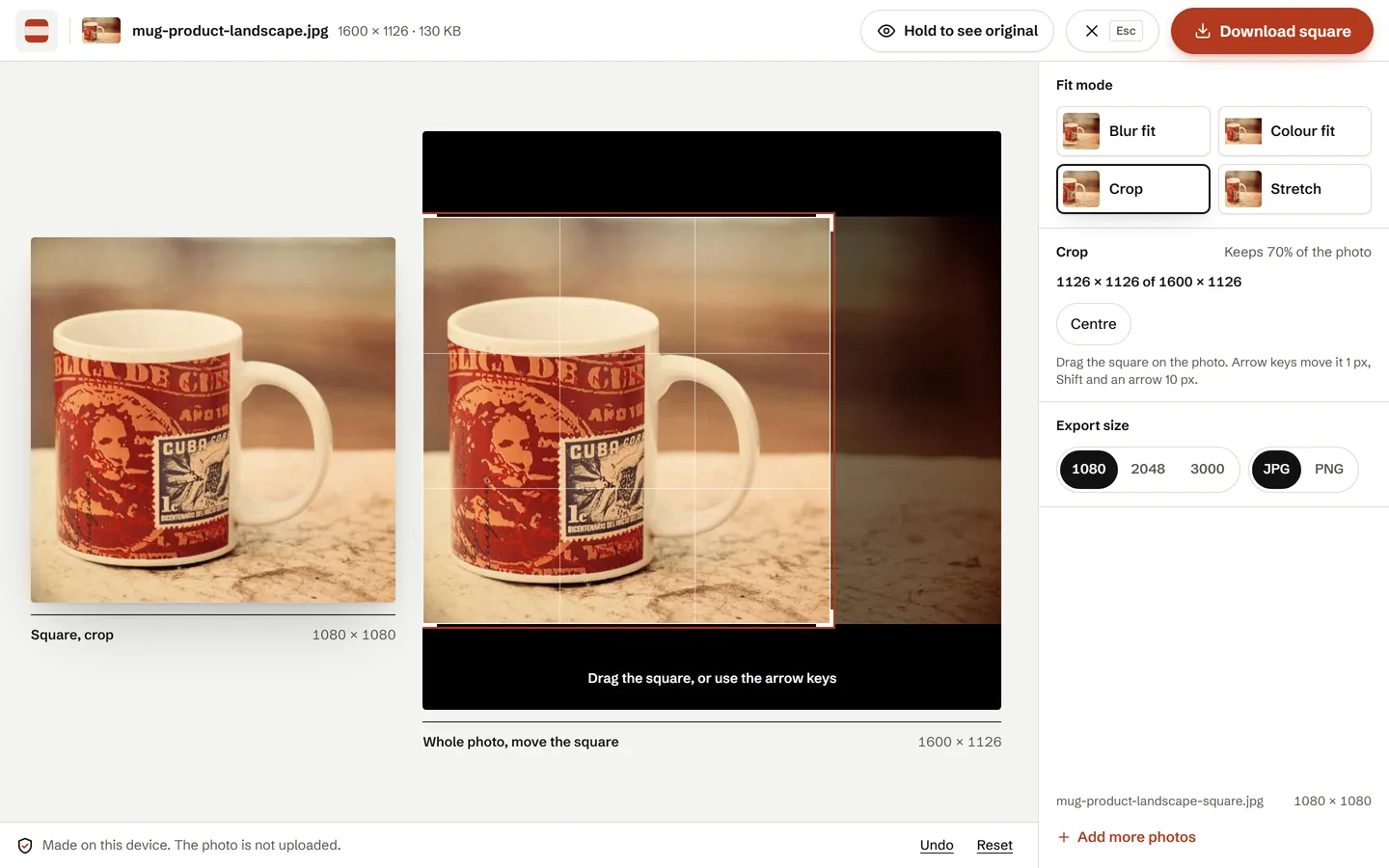
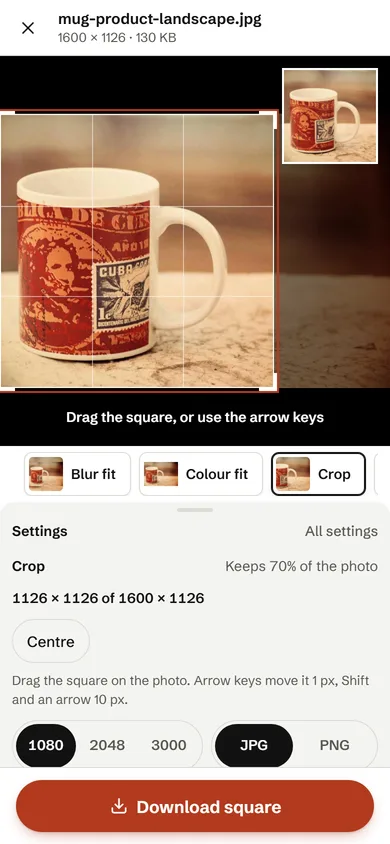
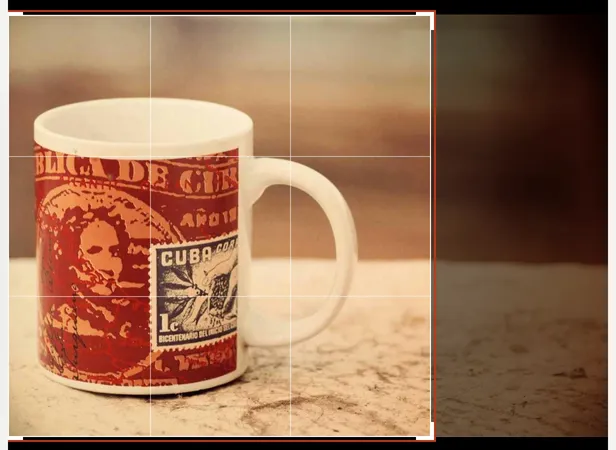
Real screenshotmug-product-landscape.jpg, 1600 × 1126, after 24 presses of Shift and the left arrow. The readout says Keeps 70% of the photo.
How to crop a photo to a square in five steps
To crop a photo to a square, choose it, move the square onto what matters, check the kept share, pick a size and save.
Choose the photo
Drop it on the box, paste it, or press Choose photo. The editor opens over the page with the square already set to the photo's short side.
Move the square onto the subject
Drag the square, or click it and use the arrow keys: 1 px a press, 10 px with Shift. Scroll or pinch to zoom in.
Read what the crop keeps
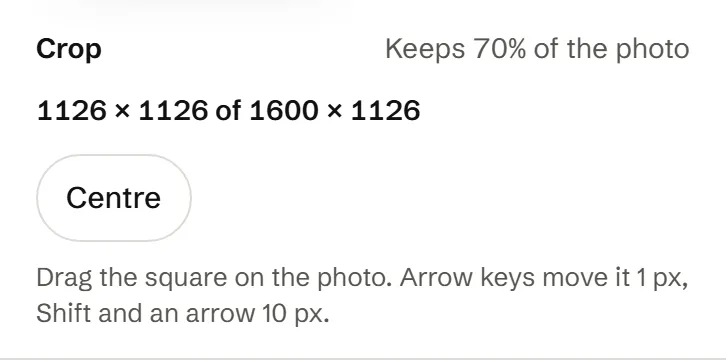
The Crop panel says how much of the photo stays and the kept size in pixels. Centre puts the square back in the middle.
Pick the size and format
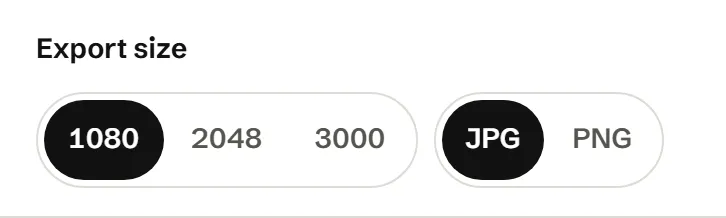
Choose 1080, 2048, 3000 px or Custom, and JPG or PNG. JPG makes smaller files; PNG adds no compression loss.
Press Download square
The square is drawn and saved on your device, with -square added to the file name.

How much of your photo does a square crop remove?
A centred square crop keeps 75% of a 4:3 phone photo, 66.7% of a 3:2 camera photo and 56.3% of a 16:9 frame.
Cropping (image) is the editing step that removes the outer parts of a picture to change its framing or its aspect ratio, the width divided by the height.
A square has an aspect ratio of 1:1, so the largest square inside any photo has sides equal to the photo's short side. The share it keeps follows from that.
Share kept = short side × short side ÷ (width × height)
For a 4032 × 3024 phone photo: 3024 × 3024 = 9,144,576 pixels, out of 12,192,768. That is 75%, and 504 px goes from each side.
Portrait photos lose the same share from the top and bottom instead. Moving the square changes which pixels go, never how many.
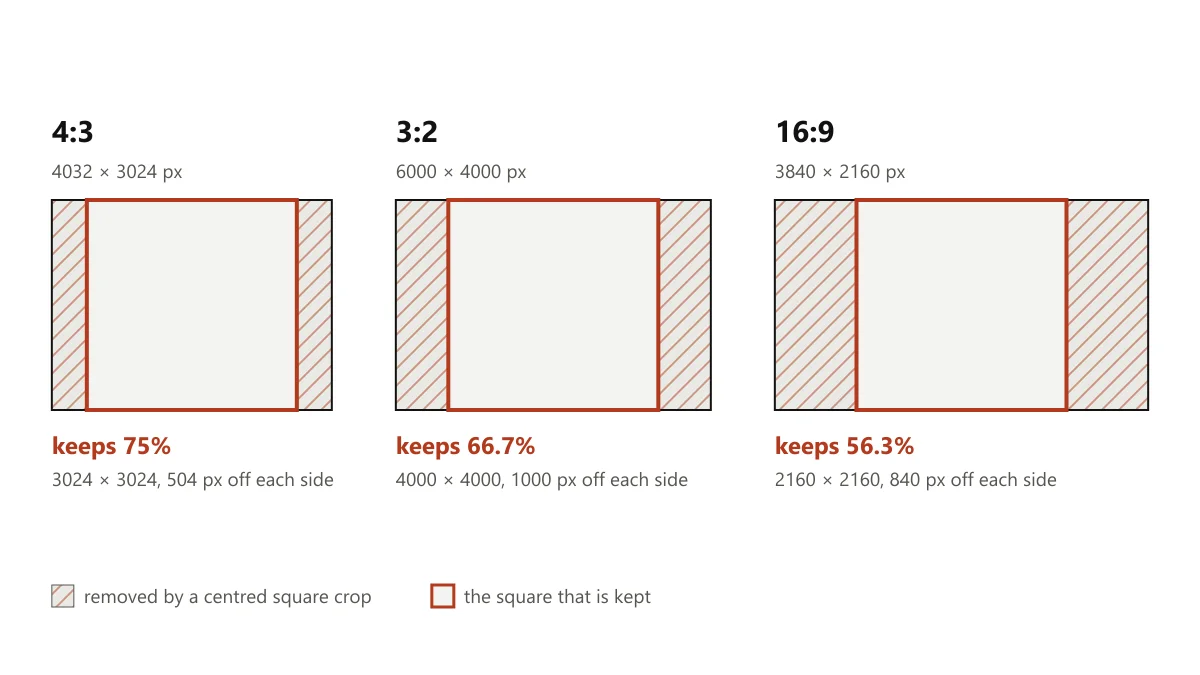
| Photo | Ratio | Size, px | Square kept, px | Kept | Removed | Cut from each side |
|---|---|---|---|---|---|---|
| Phone photo (landscape) | 4:3 | 4032 × 3024 | 3024 × 3024 | 75% | 25% | 504 px, left and right |
| Phone photo (portrait) | 3:4 | 3024 × 4032 | 3024 × 3024 | 75% | 25% | 504 px, top and bottom |
| Camera photo (landscape) | 3:2 | 6000 × 4000 | 4000 × 4000 | 66.7% | 33.3% | 1000 px, left and right |
| Camera photo (portrait) | 2:3 | 4000 × 6000 | 4000 × 4000 | 66.7% | 33.3% | 1000 px, top and bottom |
| Video frame or wide screenshot | 16:9 | 3840 × 2160 | 2160 × 2160 | 56.3% | 43.7% | 840 px, left and right |
| Medium format or 8 × 10 print scan | 5:4 | 3000 × 2400 | 2400 × 2400 | 80% | 20% | 300 px, left and right |
How do I square a photo without cutting off the subject?
To square a photo without cutting off the subject, move the square onto the subject before you save, by dragging it or with the arrow keys.
Everything outside the square is dimmed on the original, so you see the cut before it happens. The live square beside it updates as you move.
An arrow key moves the square 1 px, and Shift with an arrow moves it 10 px. Centre puts the square back in the middle.
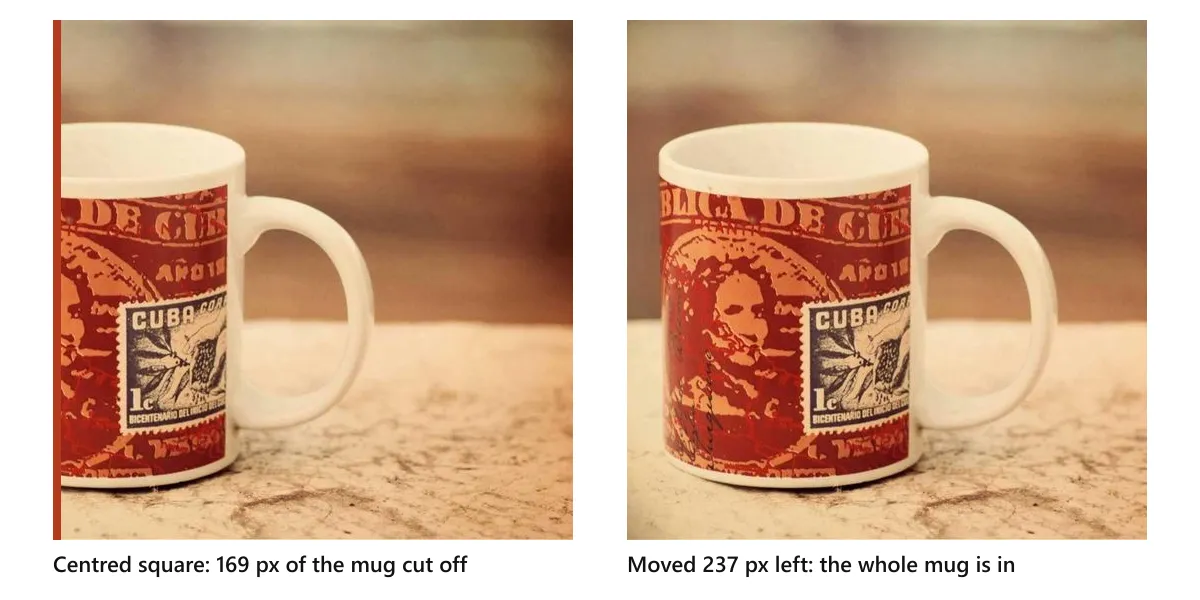
We opened all 9 test photos in the tool and saved each with the square left in the middle. The centred square cut the subject in 2 of them.
Both were products placed to one side. Moving the square fixed both, with no part of the subject cut.
| Photo | Size, px | Subject | Cut by the centred square | Square moved | Cut after moving |
|---|---|---|---|---|---|
| canoe-lake-landscape.jpg | 1600 × 1066 | Woman and paddle blade | None | Not needed | None |
| coffee-pour-over-landscape.jpg | 1600 × 1066 | Kettle and Chemex | None | Not needed | None |
| mug-product-landscape.jpg | 1600 × 1126 | Mug including handle | 169 px | 237 px left | 0 px |
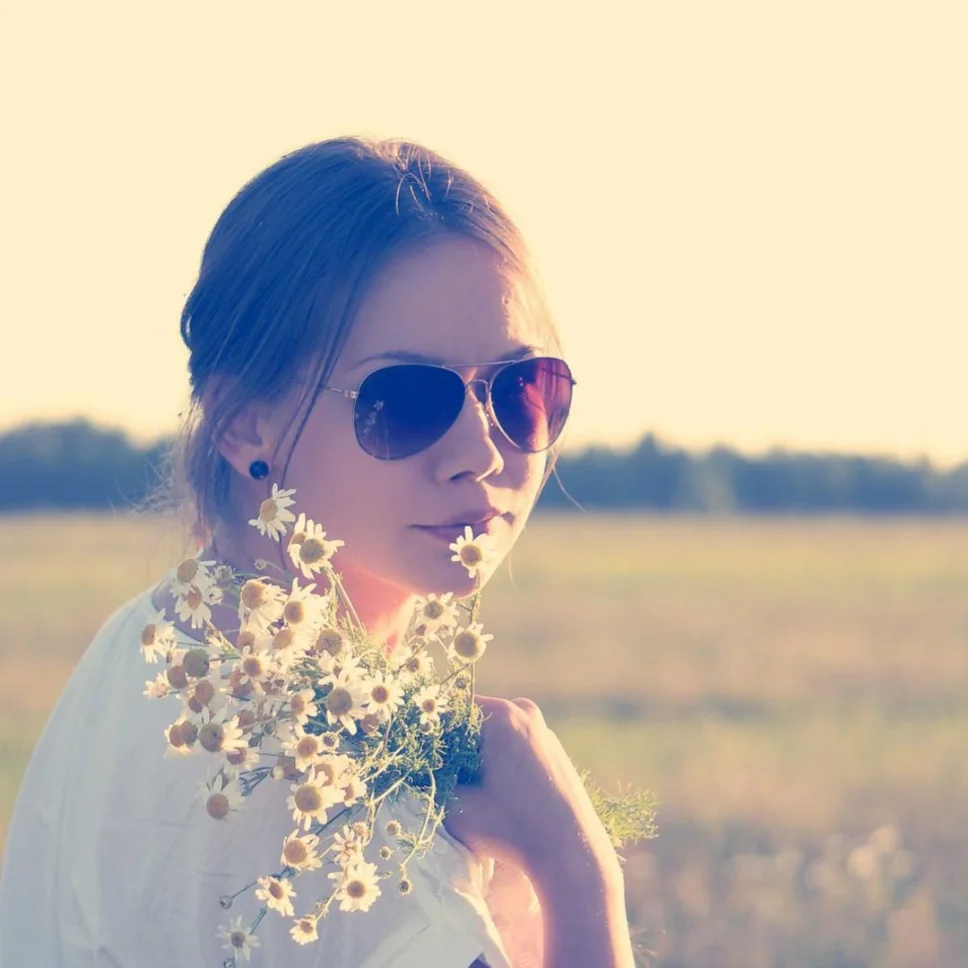
| portrait-sunglasses-landscape.jpg | 1600 × 1066 | Head and bouquet | None | Not needed | None |
| portrait-woman-tall.jpg | 1066 × 1600 | Face, hairline to chin | None | Not needed | None |
| pug-blanket-landscape.jpg | 1600 × 1066 | Pug and blanket | None | Not needed | None |
| reading-woman-landscape.jpg | 1600 × 1066 | Head and book | None | Not needed | None |
| teapot-landscape.jpg | 1600 × 1044 | Teapot including handle | 83 px | 278 px right | 0 px |
| waterfall-rainbow-landscape.jpg | 1600 × 1066 | Waterfall and person | None | Not needed | None |
Put the focal point inside the square
The focal point is the part of a picture the eye lands on first: a face, a label, a sign. Keep it whole and clear of the edges.
Faces want a little space above the head. A crop that ends at the hairline or the chin looks accidental, even when nothing important is lost.
When no square can hold the subject
In the tall portrait, her head runs 1153 px from the top of her hair to her chin. The square is only 1066 px, so some of it must go.
The centred square keeps her face from hairline to chin and drops the top of her hair. A subject taller than the square is better padded.
Which photos look better as a square crop?
Photos with one centred subject, a symmetrical scene or an evenly balanced frame look best as a square crop. Tall groups and wide landscapes usually lose too much.
Why does a square crop need different composition rules?
A square crop needs different composition rules because a square frame has no long side to lead the eye along. Composition is how the parts of a picture are arranged.
Photocritic.org's article on the square crop describes the eye moving around a square until it finds the focal point. It adds that familiar composition rules don't seem to apply.
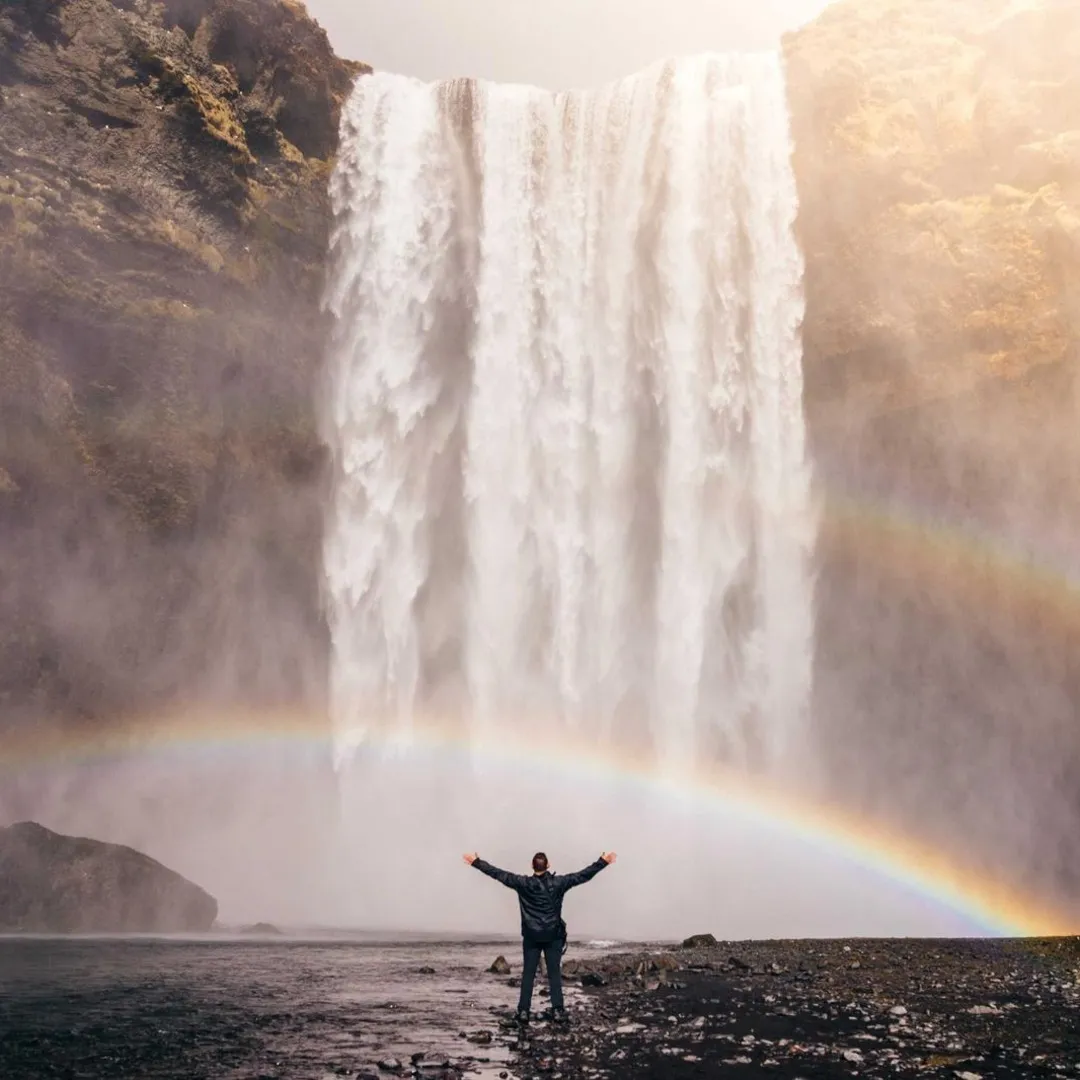
Symmetry works well instead: a waterfall, a doorway or a face looking straight at the camera can sit in the middle and feel settled.
- Crop well: one centred subject, symmetrical scenes, balanced textures and patterns.
- Crop badly: groups of people in a row, wide landscapes, and text running edge to edge.
Square frames have a long history outside phones too. Album cover art has long been square, and Instagram began with square posts only.
When should I crop a square image instead of padding it?
Crop a square image when nothing you need sits in the strips a square removes. Pad it when the subject reaches into those strips.
Padding keeps the whole photo and fills the leftover space around it. Cropping keeps a full frame of photo and drops the edges.
A 3:2 photo loses 1000 px from each long edge at full size. If a hand, a logo or a line of text sits there, pad it.
In CSS terms, a crop is object-fit cover and padding is contain. MDN defines both.
To keep everything, pad it with a blurred border made from the photo itself, or add a white border instead for products and prints.
For other tools, see square crop in Photos or GIMP.
What is the difference between a square image cropper and a square image maker?
The difference between a square image cropper and a square image maker is what happens to the edges. A cropper cuts them off; a maker can also keep them.
A square image maker offers fit modes too: the whole photo on a blurred or plain background, or stretched to fill. This page is the cropper.
The same editor does both. Switch the mode, or open the main tool to fit the whole photo instead.
Does cropping a photo to a square lower its resolution?
No, cropping a photo to a square doesn't lower the detail of what stays. A 4032 × 3024 photo keeps a 3024 × 3024 square of its own pixels.
The pixel count does drop, because the cut strips are gone: 12.2 megapixels become 9.1. Detail per pixel stays the same.
This tool saves the square at 1080, 2048 or 3000 px, with no original-size option. A 3024 px square is reduced slightly at 3000 px and more at 1080.
A small photo works the other way. The 1066 px square from a 1600 × 1066 photo is enlarged at every preset, which adds pixels but no new detail.
JPG is saved at quality 92. PNG adds no compression loss, but its files were about 5 to 10 times larger than JPG in our test.
| Photo | Format | Saved size, px | File size | Square was |
|---|---|---|---|---|
| 4032 × 3024 photo | JPG | 1080 × 1080 | 444 KB | reduced |
| 4032 × 3024 photo | JPG | 2048 × 2048 | 1.4 MB | reduced |
| 4032 × 3024 photo | JPG | 3000 × 3000 | 2.4 MB | reduced |
| 4032 × 3024 photo | PNG | 1080 × 1080 | 2.4 MB | reduced |
| 4032 × 3024 photo | PNG | 2048 × 2048 | 7.6 MB | reduced |
| 4032 × 3024 photo | PNG | 3000 × 3000 | 14.5 MB | reduced |
| 1600 × 1066 photo | JPG | 1080 × 1080 | 163 KB | enlarged |
| 1600 × 1066 photo | JPG | 2048 × 2048 | 392 KB | enlarged |
| 1600 × 1066 photo | JPG | 3000 × 3000 | 662 KB | enlarged |
| 1600 × 1066 photo | PNG | 1080 × 1080 | 1.4 MB | enlarged |
| 1600 × 1066 photo | PNG | 2048 × 2048 | 3.8 MB | enlarged |
| 1600 × 1066 photo | PNG | 3000 × 3000 | 6.9 MB | enlarged |
Is your photo uploaded when you crop it?
No, your photo isn't uploaded when you crop it here. The square is cut and saved inside your browser, and the file never goes to a server.
The crop uses the HTML canvas, the drawing surface built into every browser. Its drawImage method copies a source rectangle onto the canvas.
That source rectangle is the square you placed. The canvas is then turned into a JPG or PNG file on your device, and the browser saves it.
Phone photos often store pixels sideways, with an Exif orientation tag saying how to turn them. The tool applies that tag first, so the square matches what you see.
From choosing a photo to the saved file, our browser log on 24 November 2026 showed only GET requests for the editor's own scripts. None carried any data.
Square croppers tested on one off-centre photo
We gave four free square croppers the same 1600 × 1126 mug photo, with the mug at the left, on 24 November 2026 in Chromium 159 on a Windows desktop.

| Feature | SquareFitImage | squareimage.run | splitanimage.com | imageoverlay.org |
|---|---|---|---|---|
| Move the square | Drag, arrow keys (1 or 10 px), Centre button | Drag on the preview | Move Crop Box mode, then drag | Drag pans the photo; grey gaps can appear |
| File as opened | 1080 × 1080 JPG, centred, fills the square | 1200 × 1200 JPG with white bands 72 px top and bottom | 1600 × 1600 PNG, centred, 1126 px square enlarged | 1600 × 1600 PNG, whole photo on grey bands |
| Mug cut as opened | Yes, 169 px of the left side | Yes, the left side | Yes, the left side | No, nothing is cropped at zoom 100% |
| Zoom in tighter than the short side | Yes, 1× to 4× | Not checked | Yes, crop size slider | Yes, zoom 50 to 300% |
| Export sizes | 1080, 2048, 3000 or custom, 100 to 3000 px | 1200, 1080, 512, 256, original or custom | 1600 px for this photo | 1600 px for this photo |
| Share kept shown | Yes, Keeps 70% of the photo | No | Crop size in px | Zoom in % |
| Photo uploaded | No | No | No | No |
| Watermark | None | None | None | None |
Where they do better: imageoverlay.org zooms out to 50%, below our 1× limit. squareimage.run offers 256, 512, original and custom sizes.
We didn't test resizing the crop box on squareimage.run. Every site here kept the photo in the browser and added no watermark.
Square crop questions
To crop an image to a square on iPhone, open this page in Safari and choose the photo, or use the Photos app.
Apple's iPhone User Guide lists Edit, Crop, the aspect ratio button, then Square.
We read that guide on 24 November 2026 but have not yet tested this page on a real iPhone.
To crop an image to a square on Android or Windows, open this page in your browser and choose the photo. Nothing is installed.
The Google Photos help page says to tap Aspect ratio in the crop screen to crop to a square. On Windows, this page is tested in Chrome.
Yes, every square crop here is exactly 1:1. The kept width and height both equal the photo's short side.
The file is then saved at 1080, 2048 or 3000 px on each side.
Yes, you can zoom in to crop tighter than the short side. Zoom goes from 1× to 4×, and at 4× the square is a quarter of the short side.
Use the Zoom slider, scroll over the photo, pinch on a phone, or press + and − on the square. A crop smaller than the export size is enlarged.
Yes, you can crop to other shapes on a sister page. The aspect ratio changer crops or pads to 4:5, 9:16, 16:9, 4:3 or a custom ratio.
Use it to crop to another aspect ratio with the same drag and arrow-key controls.
Yes, you can square crop up to 30 photos at once and save them as one ZIP.
Each photo keeps its own square position, so each can sit on its own subject.